Step 1 / 2

BINGO LINK Cloud Delivery
API Key Purchase (1/2)

This page explains what the API key is and how it is used for BINGO LINK cloud delivery. After reviewing the flow, continue to the purchase page.

  • The API key is a pass used to start cloud delivery
  • After purchase, you can issue the participant QR code
  • The QR code can be printed as an A4 poster and displayed at the venue
  • You can combine two unused API keys with the same number of event days on the API key concurrent connection combination page.
How to Use It in 6 Steps

1. Purchase an API key

Choose a plan and the number of event days based on your event size, then complete the purchase.

Go to the purchase page

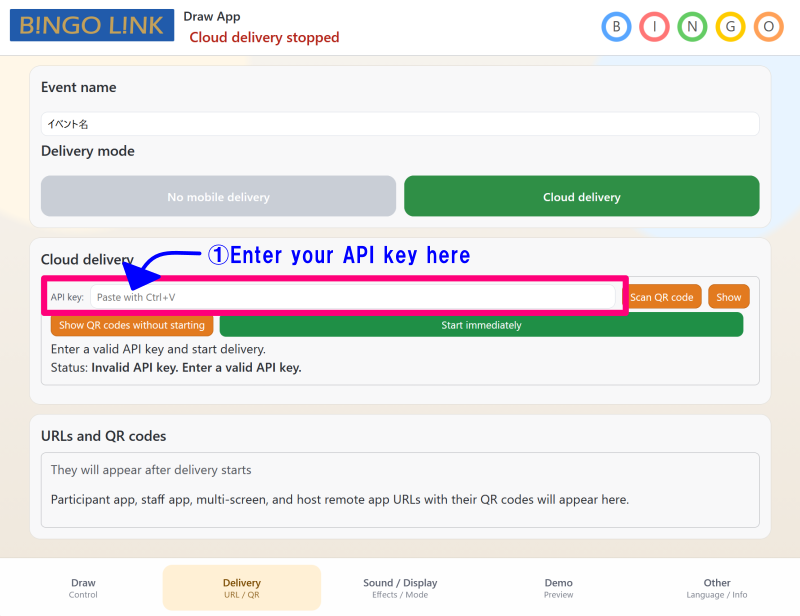
2. Enter it in the BINGO LINK app

Enter the API key issued after purchase in the cloud delivery API key field.

BINGO LINK app API key input screen

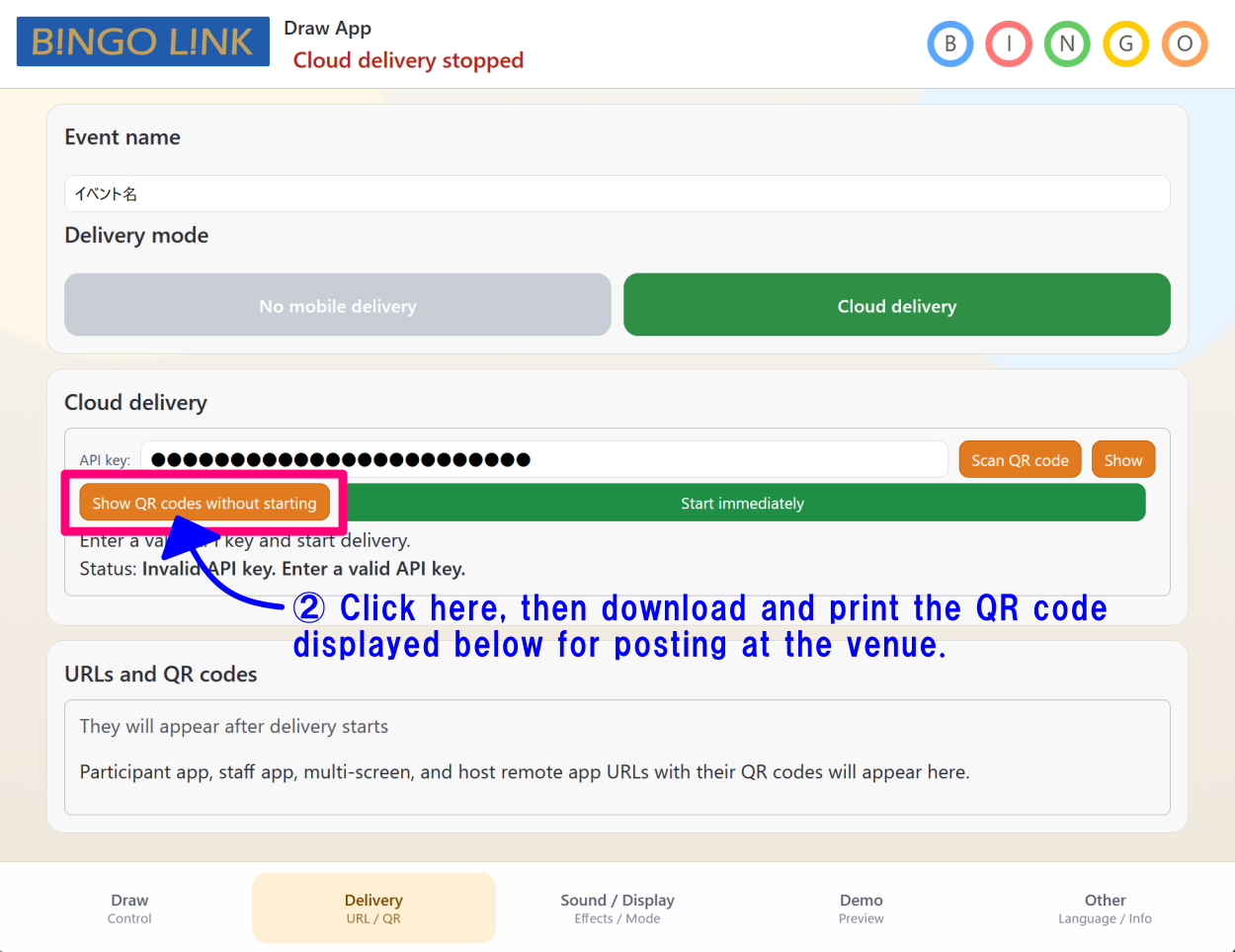
3. Issue the participant QR code

Once cloud delivery starts with the API key, you can issue the participant QR code.

BINGO LINK app participant QR code issue screen

4. Print it as an A4 poster and display it at the venue

Print the issued QR code as a poster PDF and place it somewhere easy for participants to see.

Illustration of a penguin putting up a participant app QR code poster at the venue

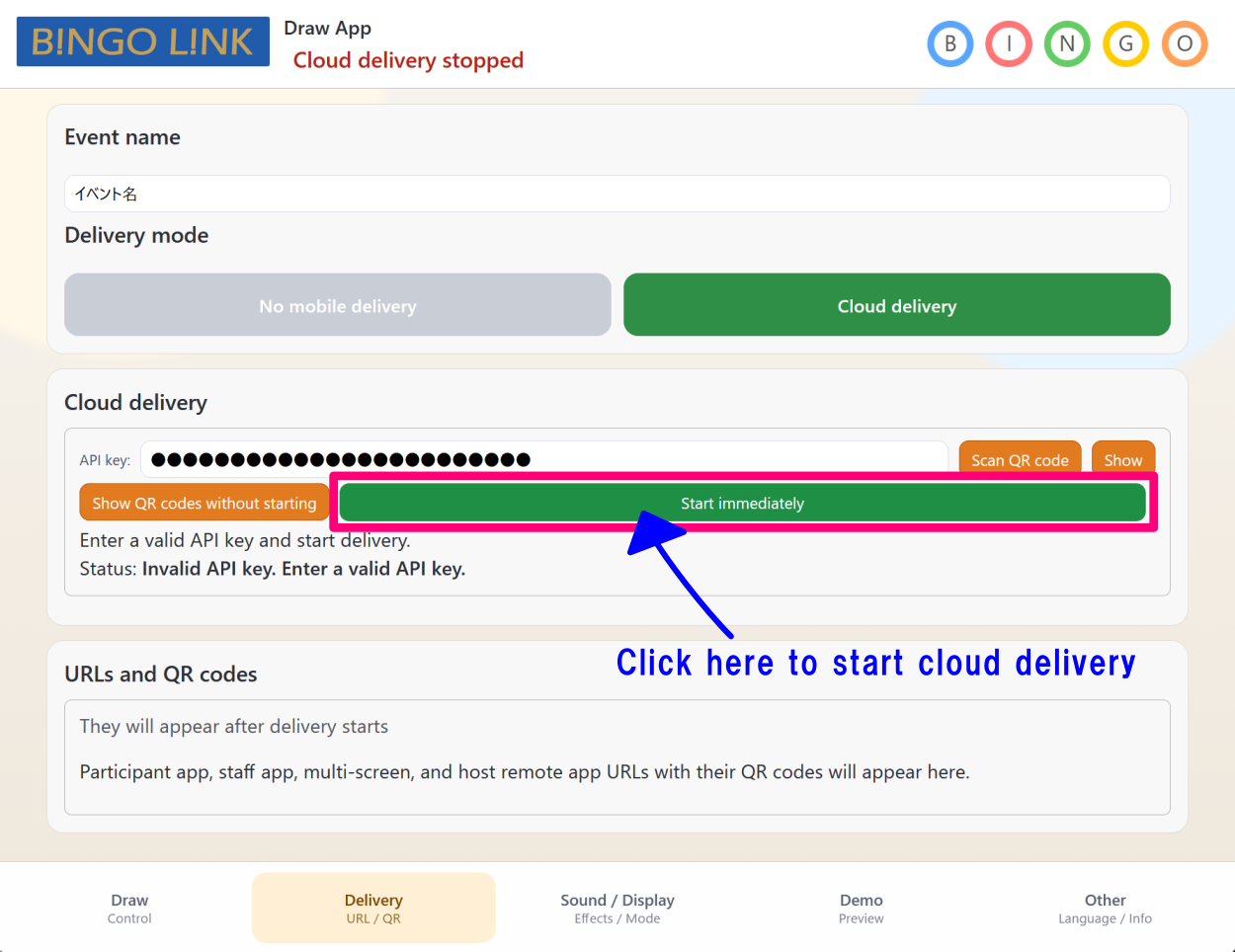
5. On the event day, start cloud delivery

Enter the same API key that you used when issuing the participant QR code, then start cloud delivery.

BINGO LINK app cloud delivery start screen

6. Run the bingo event

Participants scan the QR code and join the bingo event using cloud delivery.

Illustration of a penguin hosting a bingo draw with a microphone and large screen